Alt Text Studio · Documentation
How to view full details of a specific image
Click any row in My Library to open its detail page. Full image preview, all formats, language tabs, and editable fields.
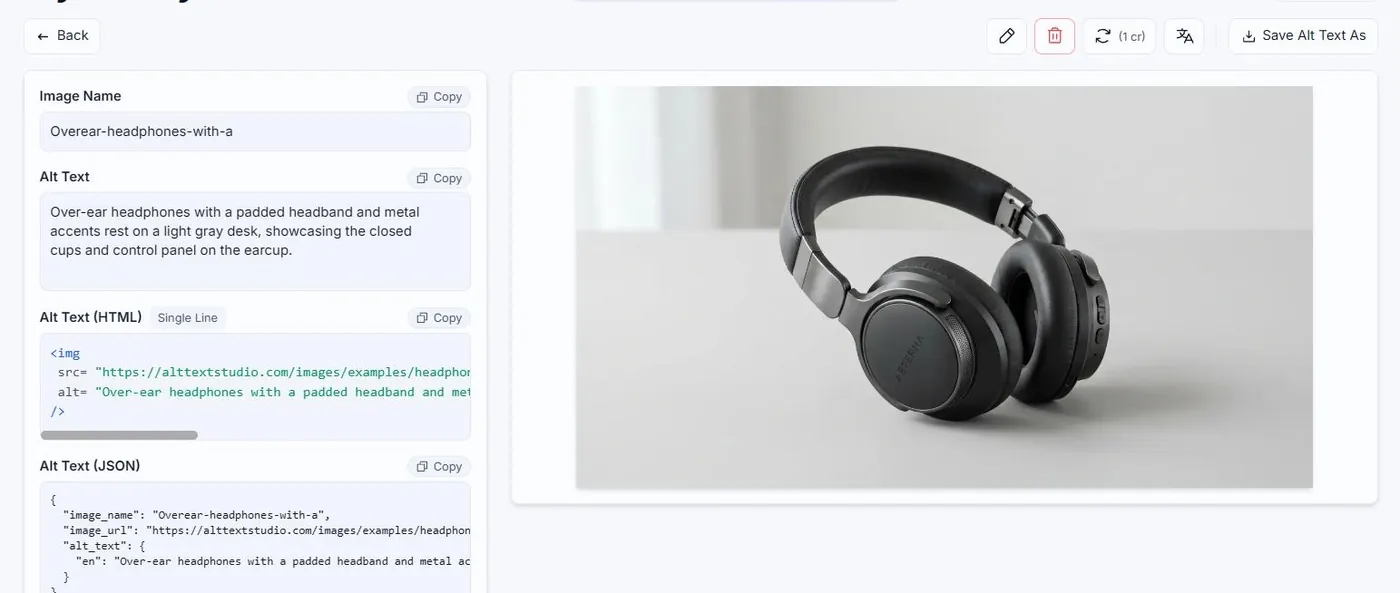
The detail page is where you do deep editing on a single image. Bigger preview, full alt text textarea, all output formats, all metadata fields, everything in one place.
Open the detail page
On My Library, click anywhere on a row. The detail page opens at /my-library/<image-id>.
What's editable here
Image Name and Alt Text (per language). Both have a Save button that appears when you have unsaved changes. The other fields shown on the detail page (SEO keywords, negative keywords, brand, product, colors, custom prompt) are read-only references to whatever was used when the image was generated.
Outputs and copy
Format tabs at the top of the result card (Plain Text / HTML / JSON) switch which output the Copy button copies. Language badges switch which translation is displayed. The Save Alt Text As button (top-right) downloads the alt text as .txt, .html, .csv, or .json.

Regenerate from here
The Regenerate icon (a circular-arrow) opens a small modal where you can tweak text length before re-running. The Translate icon opens a language picker if you want to add more translations.
Why uploaded images show a placeholder instead of a preview
We don't store your uploaded image files. We only keep the alt text and metadata. So the detail page for an Uploaded image shows a generic placeholder thumbnail in the preview area instead of the original image. Linked images (where you pasted a URL or scraped a webpage) keep the source URL and render the live preview as long as the URL stays reachable. If a linked image's source goes 404 later, that preview breaks too, but the alt text and metadata are unaffected.
Related guides
- How to edit alt text after generating— Edit alt text inline on the Create page, in My Library rows, or on the detail page.
- How to regenerate alt text— Force a fresh generation if the first result missed the mark. Costs the same credits.
- Navigating My Library— Search, filter, sort, paginate, and select rows for bulk actions. The full tour.