Alt Text Studio · Documentation
How to upload multiple images at once
Batch generate alt text for a folder of images or several URLs.
Batches are how you get real work done. Drop 20 product photos, scrape a webpage, or paste a CSV of URLs. Alt Text Studio queues them all and generates concurrently.
Drag a folder of images in
On the Create page, drag any number of image files (or whole folders) onto the Image Upload zone. The panel switches to batch mode: a thumbnail strip on the left, a large preview of the selected image with ‹ and › arrows, and a 1 of N counter underneath. Click a thumbnail to switch which image the Options panel on the right is editing, so every image can still have its own name and options.
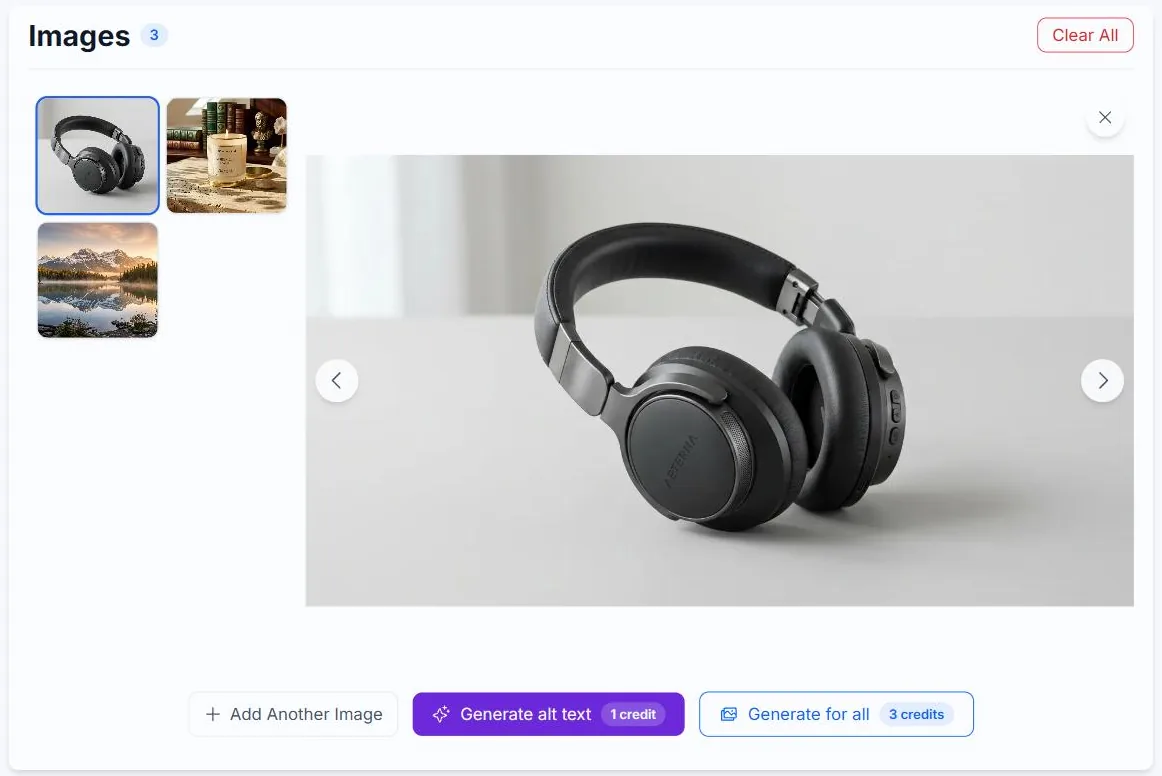
Or paste multiple URLs
In the Multiple URLs or HTML textarea, paste a list of URLs (one per line, comma-separated, or even raw HTML containing <img> tags). Click Upload. Each URL is fetched and added to the batch.
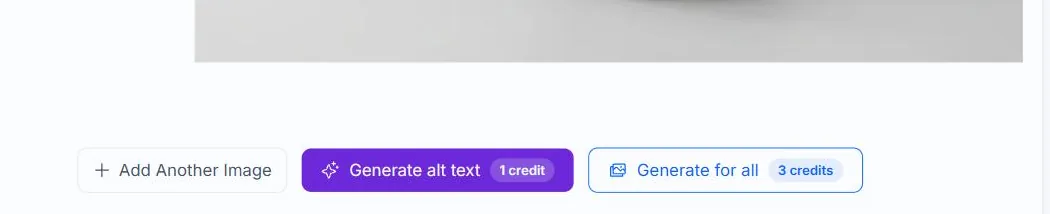
Click Generate for all
Once the batch is queued, click Generate for all at the bottom. Alt Text Studio sends images in concurrent chunks, so even larger batches move quickly.
Stop or resume mid-batch
You can click the Stop button (the small square next to Generate for all) while a batch is running. The current chunk completes; remaining images stay queued. Click Generate remaining to pick up where you left off.
Related guides
- How to link multiple image URLs— Paste a list of image URLs to process them in a single batch.
- How to import a CSV— Bulk-import images by uploading a CSV. Includes the supported template.
- How to scrape a webpage for images— Point Alt Text Studio at any URL and pull either every image or only those missing alt text.