Alt Text Studio · Documentation
How the Reset to Default button works
Clears per-image overrides on the Create page and restores your saved defaults.
When you've fiddled with per-image options on /create and want to start fresh, Reset to Default wipes those overrides and reloads whatever you saved in Generation Defaults.
Where the button is
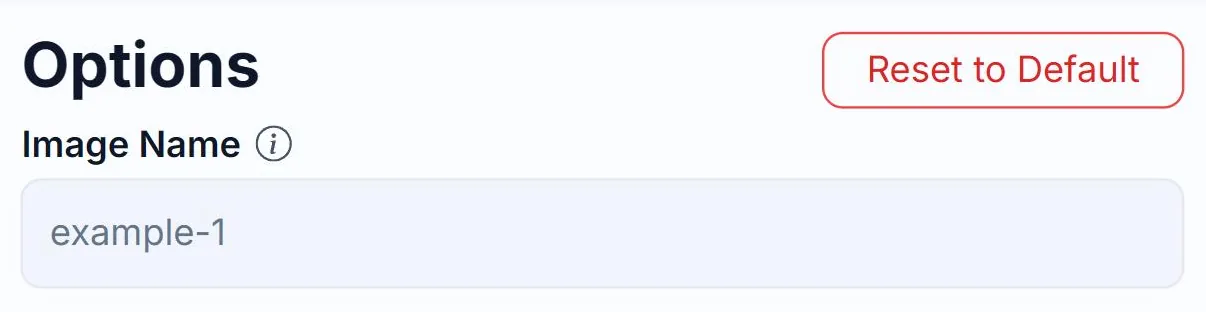
On any image card on the Create page, the Reset to Default button (red outline) sits at the top of the Options panel, opposite the Options heading. It only appears when something on the card differs from your saved defaults.
What gets reset
Every option on THAT image card: text length, language(s), brand, product, colors, SEO/negative keywords, prefix, suffix, custom prompt, auto-context. All revert to your saved defaults.
What's preserved
The image itself stays in the batch. Reset only touches options, not the image. Image Name is also preserved (it's tied to the file, not the options).
Resetting all images at once
There's no global reset for the whole batch. To reset every card, click Reset to Default on each one. The batch-level Clear All button is a different action: it removes the images entirely, not just options.
Related guides
- How to change and save Generation Defaults— Set your preferred options once on the My Account page and Alt Text Studio will use them everywhere.
- How to clear every image on the Create page— Reset the page to an empty state. Generated alt text is still in your Library.