Alt Text Studio · Documentation
How to add negative keywords
Words to keep out of the generated alt text.
Negative keywords are words you DON'T want appearing in alt text. Useful for brand voice rules, avoiding competitor names, or blocking jargon.
1
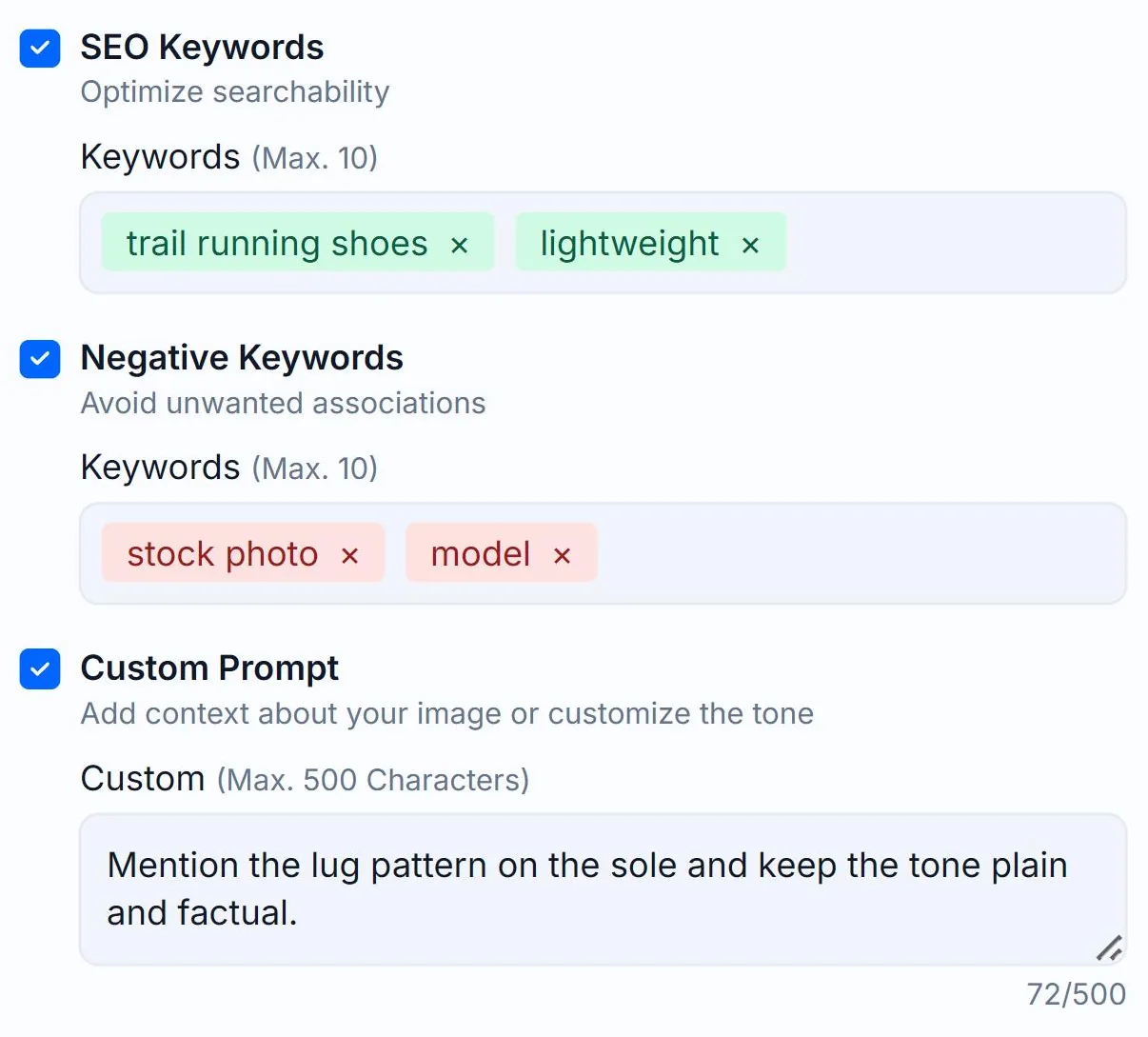
Add negative keywords on Create or in Defaults
You can set negative keywords in two places:
- Per-image — on the Create page, tick the Negative Keywords checkbox in the Options panel to expand a chips input (Enter or Space adds a keyword, max 10).
- App-wide — save them in Generation Defaults so every new image inherits them.
2
Examples that work well
- Competitor brand names (
Apple,Samsungfor a Google product) - Jargon you avoid (
leverage,synergy) - Generic filler (
amazing,beautiful,stunning) - Sensitive language (
expensive,cheap)
3
How it works
The keywords are added to the prompt with instructions to avoid them. The AI rewrites until none appear. If you add too many or contradictory ones, the result may sound unnatural. Start with 3-5 and see how it goes.
Related guides
- How to add SEO keywords— Bias the AI toward keywords you want to rank for.
- How to add a custom prompt— Steer tone or context with free-form instructions to the AI.