Alt Text Studio · Documentation
How to translate alt text into other languages
Add languages to a generation; each language costs additional credits.
Alt Text Studio supports 194 languages. Pick one or many before generating. Every selected language gets its own translated alt text, each editable independently.
Pick languages on the Create page
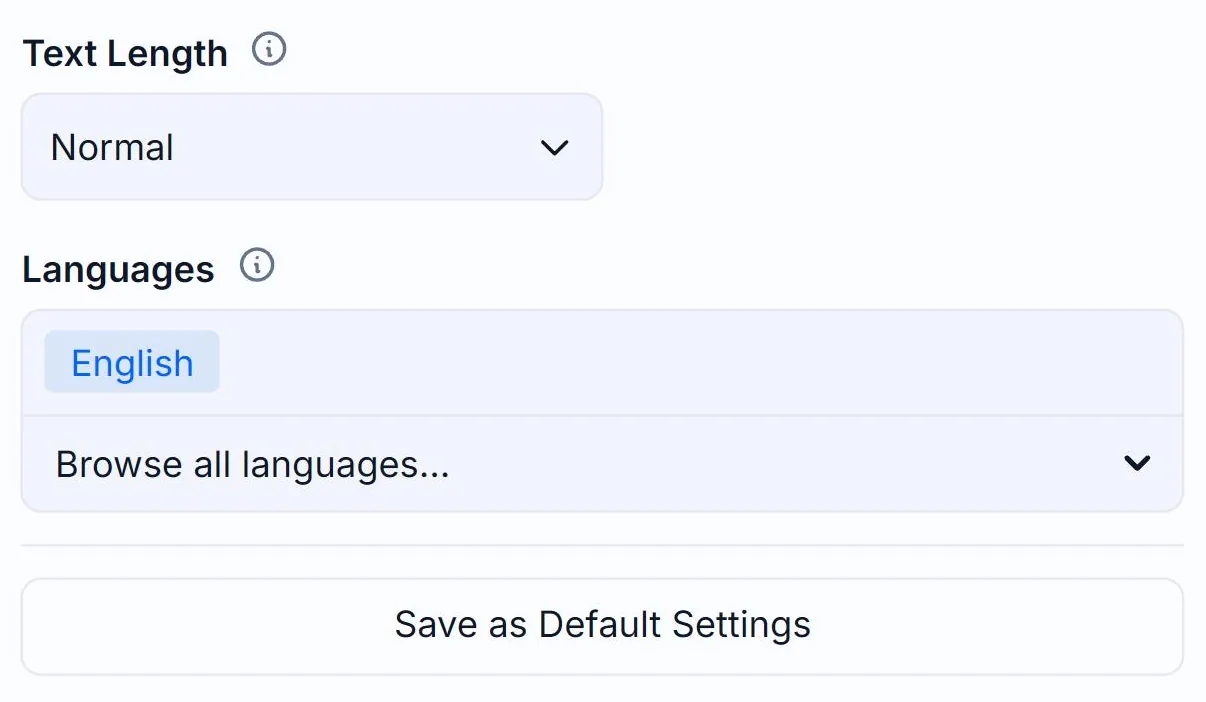
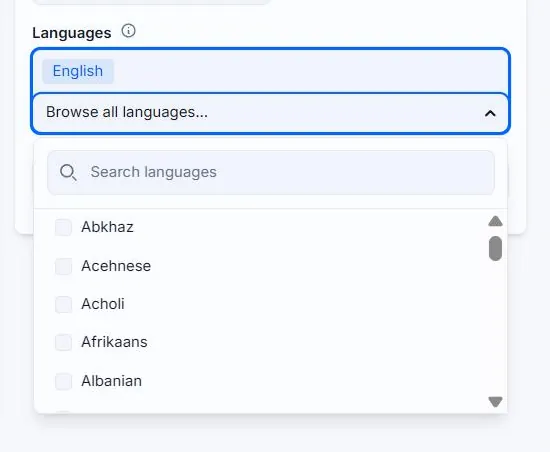
On the Create page, find the Languages input in the Options panel. Type a language name to filter the list, or click Browse all languages... to pick from the full menu. Each picked language becomes a chip. English is always included as the source language and can't be removed.
Or set default languages on My Account
If you always generate in the same language set, save them in Generation Defaults instead. Every new image inherits those languages without picking them again.
Generate (credits multiply by language count)
Each additional language adds another cost. 3 languages at the Normal text length = 3 credits per image. Detailed doubles that (6 credits per image for 3 languages).
Add translations to existing library images
You can translate images you already generated. On My Library, select one or more rows and click the Translate button in the toolbar to add languages in bulk. Or open a single image's detail page and click the Translate icon in the action bar above the alt text to pick languages for just that image. Each new language costs the same credits as a fresh generation.

Switch between language outputs
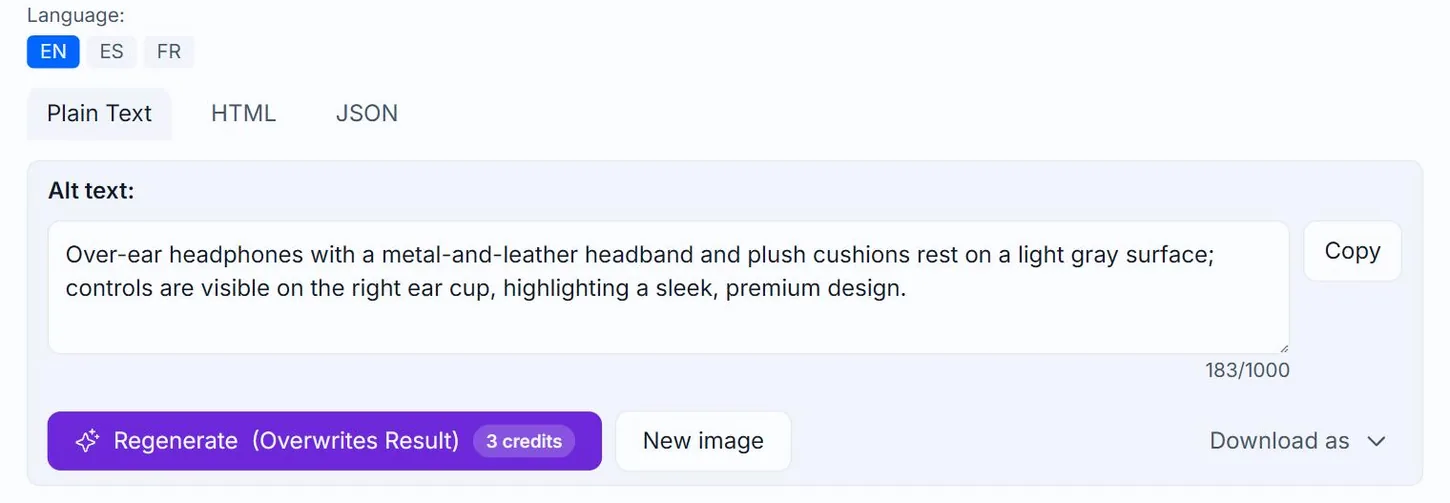
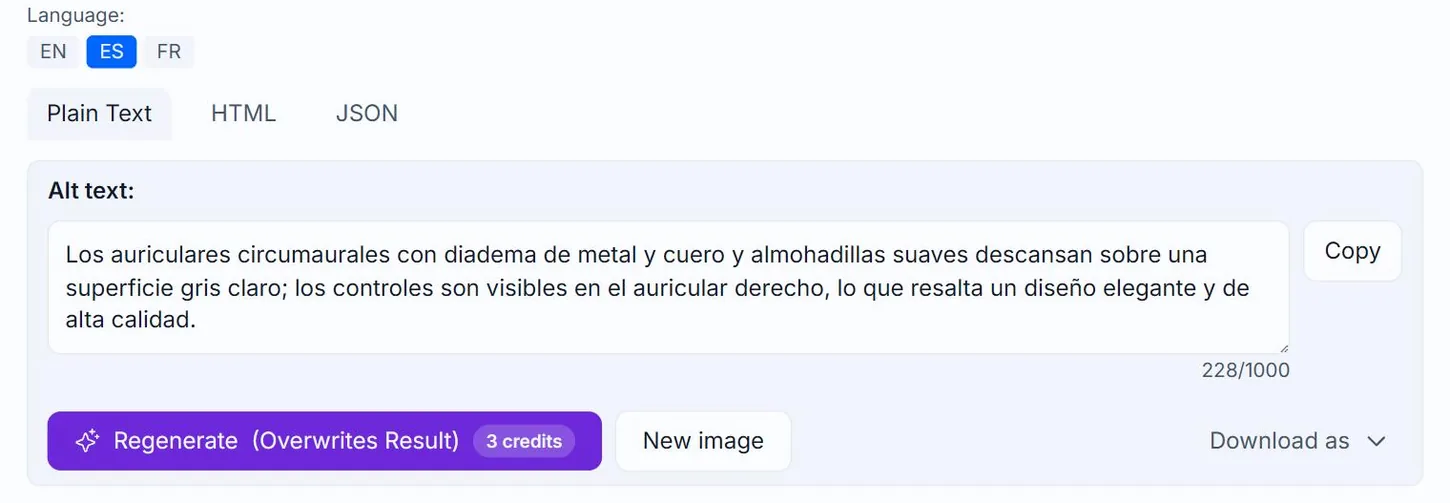
After generation, the result card shows a language badge for each language you generated (using the ISO 639 code). Click a badge to swap the displayed alt text. The same badges appear on My Library rows and on the detail page.
EN active
ES clicked
Related guides
- Switching between languages with the language badges— Use the language badges on Create, My Library, and the detail page to flip between translations.
- How to change and save Generation Defaults— Set your preferred options once on the My Account page and Alt Text Studio will use them everywhere.
- About credits and pricing— How a credit is spent, monthly vs yearly billing, pay-as-you-go.