Alt Text Studio · Documentation
How to copy alt text to clipboard
One-click copy from the Create result, My Library row, or detail page.
Every place an alt text is shown has a Copy button. One click and it's on your clipboard, ready to paste into your CMS, email, or wherever else.
1
Copy on the Create page
After generating on the Create page, the result card has a Copy button next to the alt text textarea. Click it. A toast confirms the copy.

2
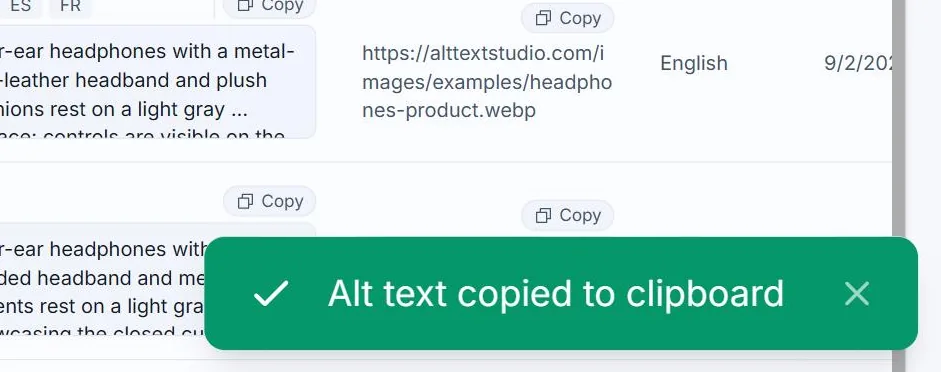
Copy from My Library rows
On My Library, each row has a Copy button beside the alt text cell. Click it to copy the alt text for the language currently selected via the row's language badges.

3
Copy on the detail page
Click any row to open its detail page. The result card has format tabs (Plain Text / HTML / JSON) and a Copy button. Switching tabs changes what the Copy button puts on your clipboard.
The detail page also has a separate Save Alt Text As button (top-right of the result area) that downloads the alt text as
.txt, .html, .csv, or .json.Related guides
- How to copy alt text as HTML— Get the full <img src="..." alt="..."> tag, ready to paste into your site.
- How to copy alt text as JSON— Structured object with image_name, image_url, and per-language alt text.
- How to export your library to CSV— Bulk-export selected images and chosen columns to a CSV.