Alt Text Studio · Documentation
How to remove a single image from your batch
Use the X button to drop an image without clearing the rest.
Hover, click the X
The large preview of the image you are currently looking at has a × button in its top-right corner. It is always visible, not hover-only. Click it to drop that one image; the rest of the batch stays and the carousel moves to the next image.
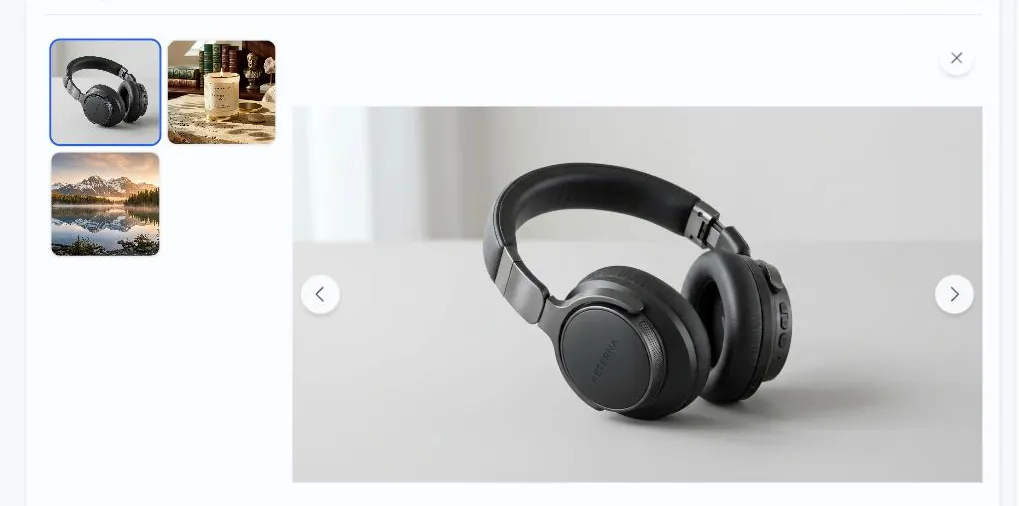
No confirmation, no credit cost
Removing an image from the batch BEFORE generation costs nothing. There's no confirmation modal. Click and it's gone. The image was never sent to the AI.
Removing after generation
If the image already generated, removing it from the batch does NOT delete it from My Library. The result is already saved. To delete the saved result, go to My Library, check the row, and click the toolbar's trash icon. You can also click the row to open its detail page, then click the trash icon in that page's toolbar.
Related guides
- How to clear every image on the Create page— Reset the page to an empty state. Generated alt text is still in your Library.
- How to delete images from My Library— Single or bulk delete with confirmation modal.