Alt Text Studio · Documentation
How to erase your entire Library
Completely empties your library. Cannot be undone. Walked through with warnings.
Warning:Erasing your library is permanent and cannot be undone. Every image, translation, and edit is hard-deleted. There's no soft-delete, no recycle bin, no backups. Export anything you might want to keep before continuing. Your account, subscription, and credits are unaffected.
1
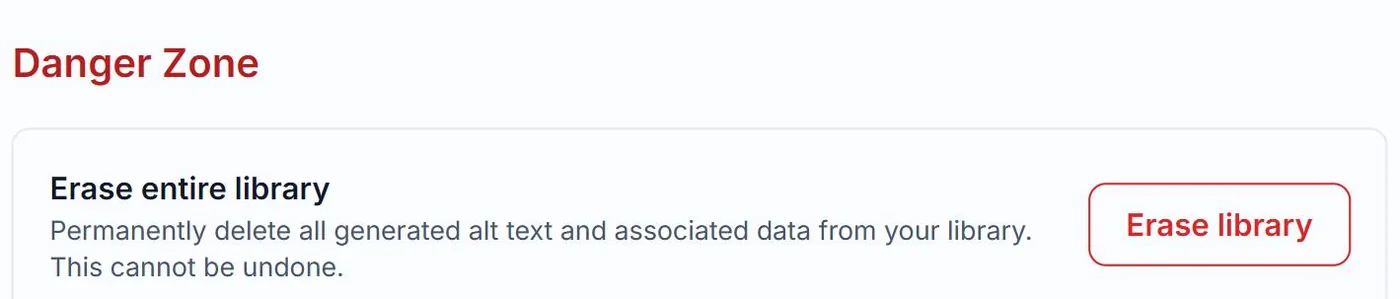
Open My Account → Danger Zone
On My Account, scroll to the bottom. There's a Danger Zone section with Erase library and Delete account buttons.
2
Click Erase library
A modal opens with a warning. Credits already used will NOT be refunded.
3
Confirm by typing ERASE (or your password)
OAuth (Google) users have to type ERASE (case-sensitive) into the confirmation input. Email/password users are asked to re-enter their account password instead. Either way, the Erase button stays disabled until the confirmation is correct.
4
After confirmation
Every image in your library is hard-deleted. Translations, edits, prefix/suffix, all gone. Your account is unchanged: subscription, credits, generation defaults, profile. Just the images.
Export first if you might need the data later. There is no undo. We do not keep backups of user-deleted libraries.
Related guides
- How to delete images from My Library— Single or bulk delete with confirmation modal.
- How to delete your account— Permanent. Removes your library, generation defaults, and profile. Walked through with warnings.