Alt Text Studio · Documentation
How to scrape a webpage for images
Point Alt Text Studio at any URL and pull either every image or only those missing alt text.
Paste a URL and Alt Text Studio fetches the page's <img> tags. You choose whether to pull in every image or only the ones missing alt text. The first option is handy for a full migration; the second for a quick accessibility audit.
Open the Scrape Webpage section
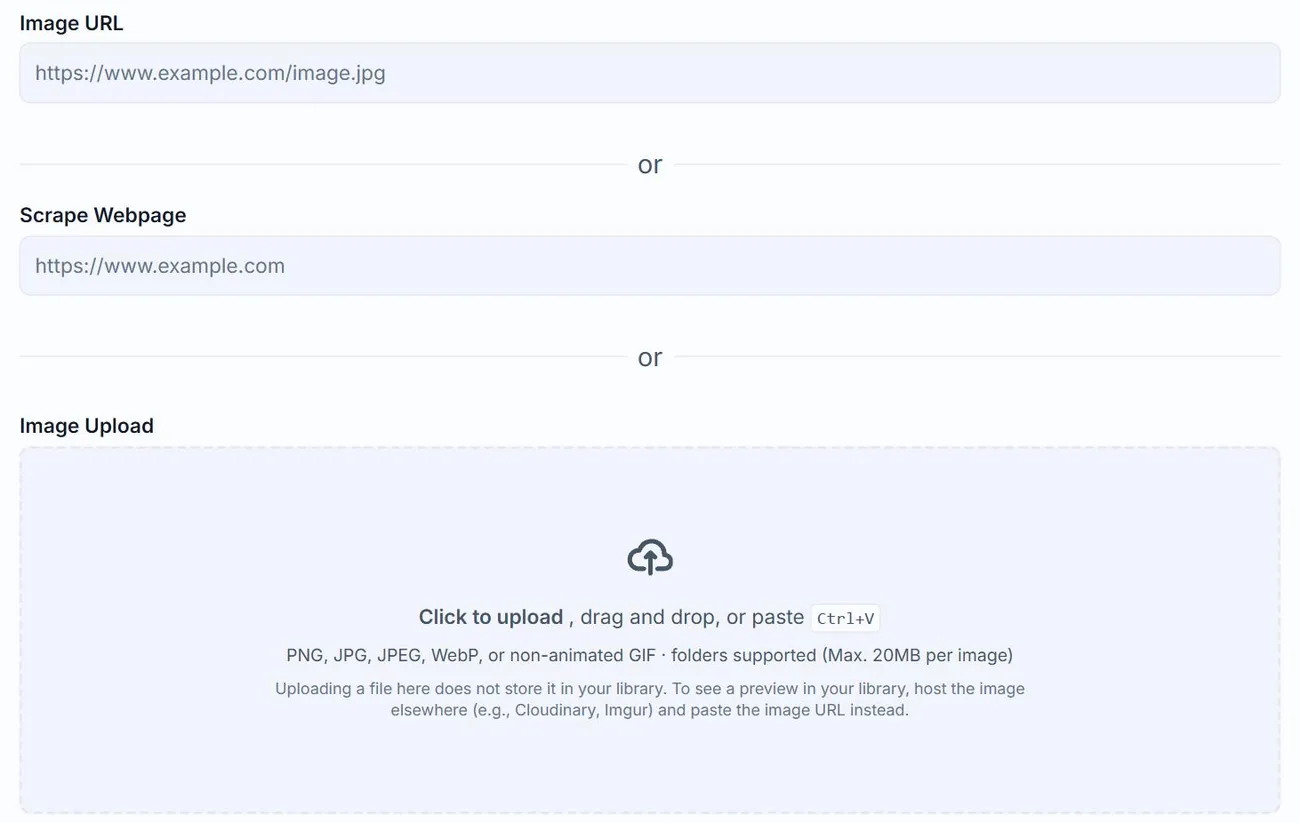
On the Create page, find the Scrape Webpage section (between Image URL and Image Upload). Paste any public page URL. As a quick test, you can paste our own Examples page to see the scraper in action.
https://alttextstudio.com/examplesChoose: all images or only missing-alt
Scrape All Images loads every <img> on the page, useful for a full re-do or migration. Scrape Images Missing Alt Text filters to images where the existing alt attribute is empty or missing, usually what you want for an accessibility audit.

Review and trim the list
Each image appears as its own card. Remove logos, decorative icons, or anything you don't want generated by clicking the × on the card. The page's title, description, and headings get pulled in as Auto-detect Context, so the AI has page-level context for every image.
Generate and export as HTML
Click Generate for all. Once done, head to My Library, select the rows from this batch, and use Export As → HTML to get a clean HTML file with proper <img alt="..."> tags for every image.
Related guides
- How to import images from HTML— Paste raw HTML containing <img> tags and Alt Text Studio extracts them.
- How to import a CSV— Bulk-import images by uploading a CSV. Includes the supported template.
- How to export your library to HTML— Bulk-export to an HTML document with proper <img> tags.