Alt Text Studio · Documentation
How to import images from HTML
Paste raw HTML containing <img> tags and Alt Text Studio extracts them.
Already have a page or email with <img> tags but missing alt? Paste the raw HTML and we'll extract every image and queue them for generation.
Open the Multiple URLs or HTML textarea on /create
On the Create page, scroll past Image URL and Image Upload to the Multiple URLs or HTML textarea. The same input accepts plain URLs or raw HTML.
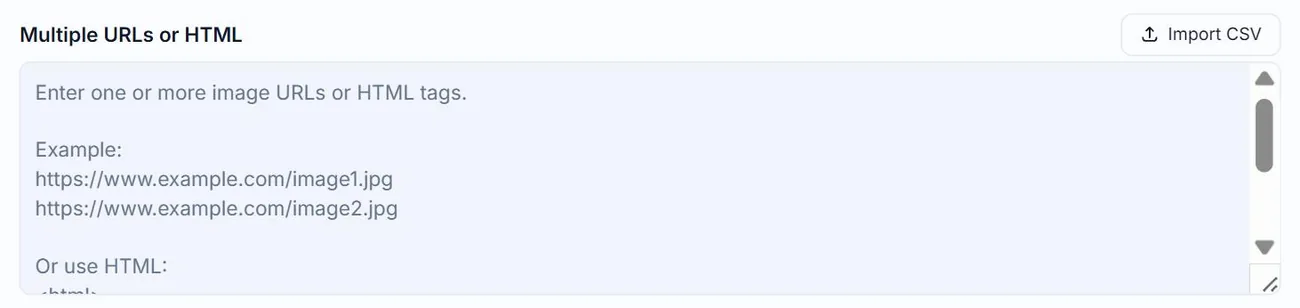
Paste your HTML
View source or copy the relevant chunk of your page. Paste it into the textarea. Click Upload. Alt Text Studio scans for <img> tags and pulls every src it finds.
<div class="gallery">
  <img src="https://alttextstudio.com/images/examples/headphones-product.webp" />
  <img src="https://alttextstudio.com/images/examples/candle-product.webp" />
  <figure>
    <img src="https://alttextstudio.com/images/examples/scenic.webp" />
    <figcaption>Mountains at sunrise</figcaption>
  </figure>
</div>Review the extracted images
Each <img> tag becomes a card. We pull every src value out of the pasted HTML. You can remove any image you don't want by clicking the × on its card before generating.

Generate for all
Hit Generate for all. The result panel includes an HTML tab that wraps the alt text in a complete <img> tag, so you can paste it back into your page.
https://...). Relative paths like src="/images/foo.jpg" are skipped, so paste HTML that already has fully-qualified image URLs.Related guides
- How to scrape a webpage for images— Point Alt Text Studio at any URL and pull either every image or only those missing alt text.
- How to import a CSV— Bulk-import images by uploading a CSV. Includes the supported template.
- How to copy alt text as HTML— Get the full <img src="..." alt="..."> tag, ready to paste into your site.