Alt Text Studio · Documentation
How to copy alt text as HTML
Get the full <img src="..." alt="..."> tag, ready to paste into your site.
1
Click the HTML format tab
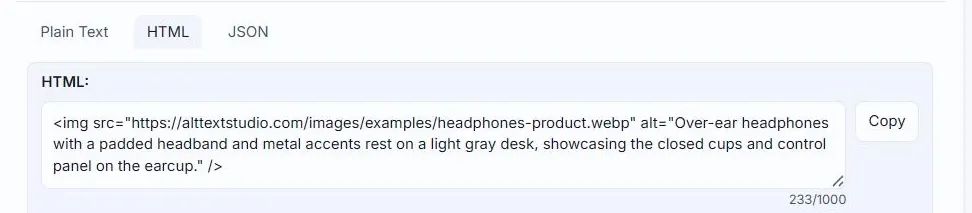
On the Create result card or on a My Library detail page, click the HTML tab above the alt text textarea.
2
Copy
The Copy button now copies a complete <img> tag built from the current alt text and the image's URL. Paste straight into your CMS or template.
<img src="https://alttextstudio.com/images/examples/headphones-product.webp" alt="Black over-ear wireless headphones with cushioned earcups resting on a wooden desk" />3
What's in the output
For multilingual images, the HTML tab shows the tag for the currently-selected language badge. Click a different badge, then click Copy to get that language's tag.
Uploaded images (where the file isn't hosted on a public URL) get
YOUR_IMAGE_URL_HERE as the src placeholder. Swap it for your final hosted URL before publishing.Related guides
- How to copy alt text to clipboard— One-click copy from the Create result, My Library row, or detail page.
- How to copy alt text as JSON— Structured object with image_name, image_url, and per-language alt text.
- How to export your library to HTML— Bulk-export to an HTML document with proper <img> tags.