Alt Text Studio · Documentation
How to change and save Generation Defaults
Set your preferred options once on the My Account page and Alt Text Studio will use them everywhere.
Generation Defaults are the options that pre-fill every new image you generate: text length, language(s), SEO keywords, ecommerce details, custom prompt, all of it. Set them once on My Account and you'll stop reconfiguring per-image options every time.
Open Generation Defaults
Open My Account and scroll to the Generation Defaults card.
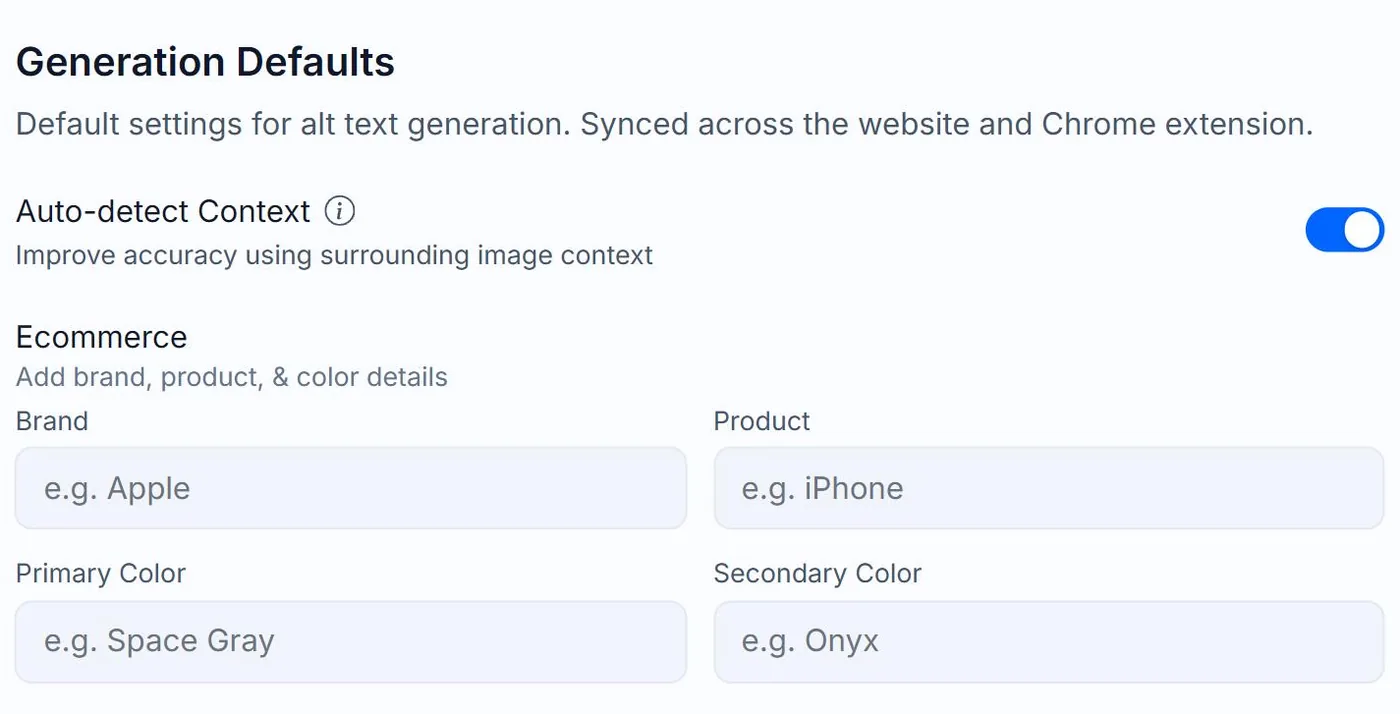
Set the options you want pre-filled
Pick a default text length, language list, and ecommerce attributes (brand, product, primary/secondary colors). Add SEO keywords, negative keywords, prefix/suffix, custom prompt, and Auto-detect Context. Anything you want every new image to inherit.
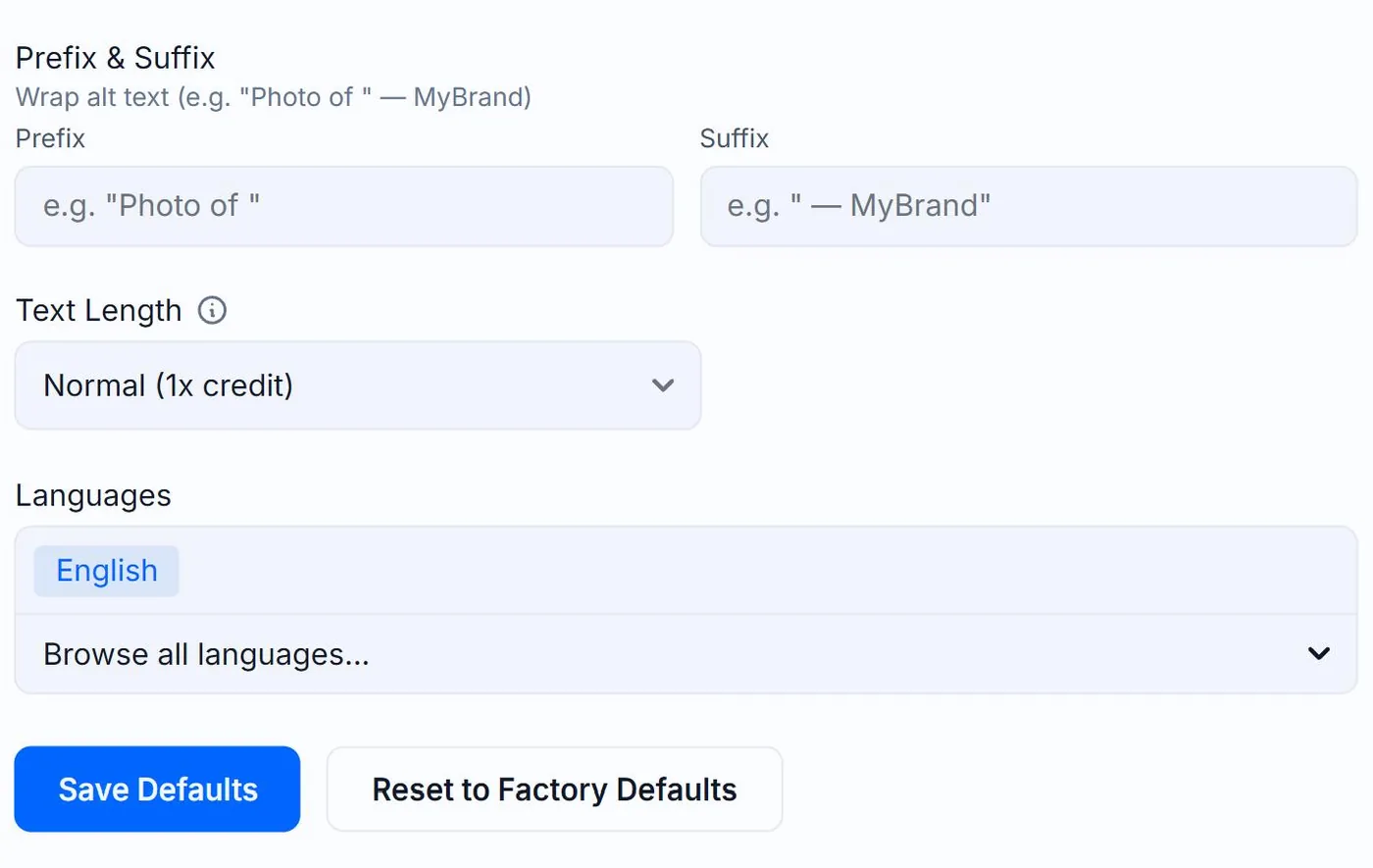
Click Save Defaults
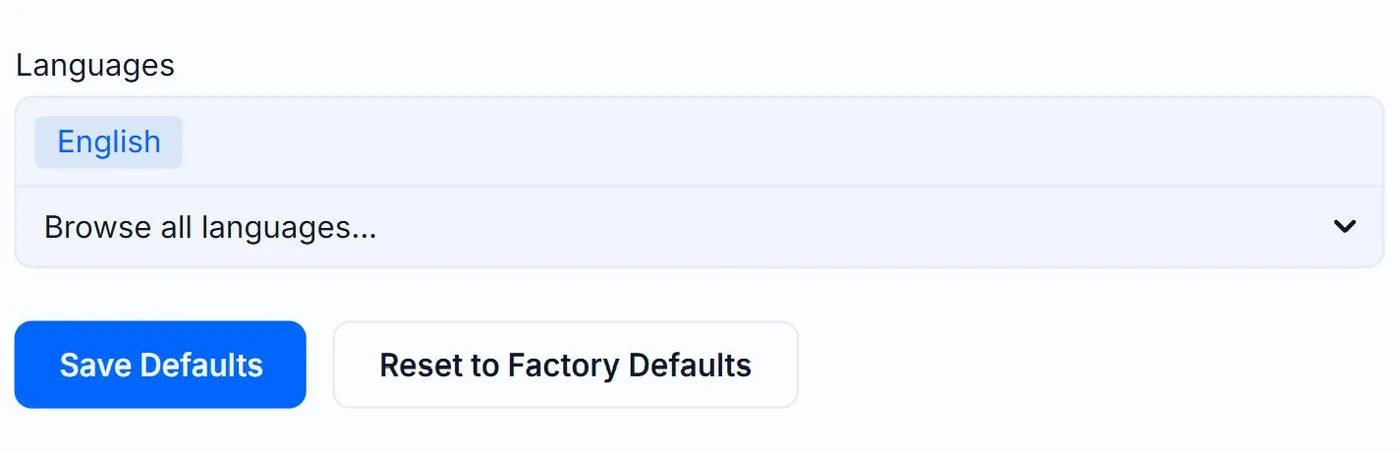
Click Save Defaults at the bottom of the Generation Defaults card. A confirmation message appears below the buttons. Defaults sync immediately across the web app and the Chrome extension. There's also a Reset to Factory Defaults button if you want to start over.
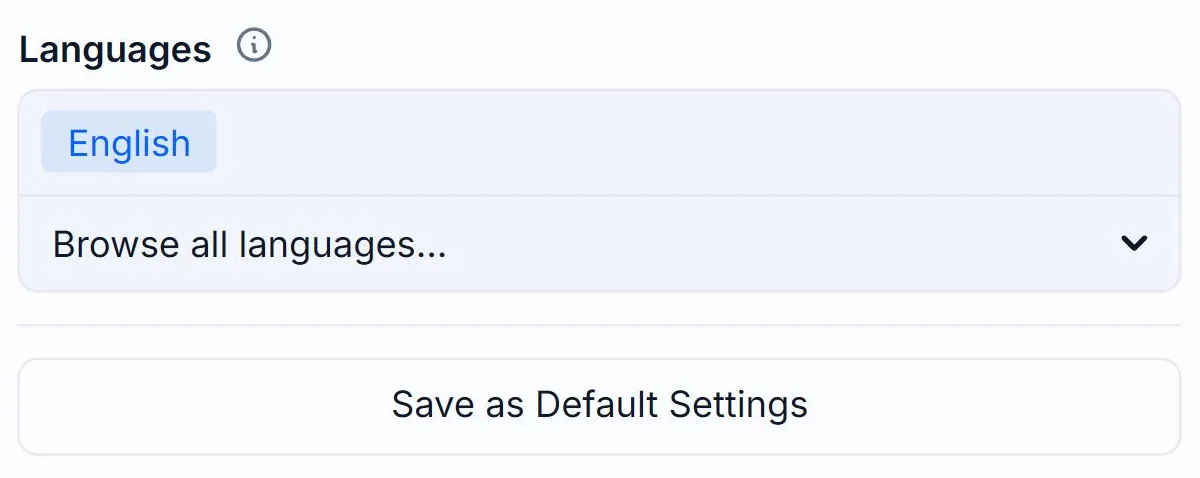
Or save defaults straight from the Create page
If you've already dialled in the options you want on a Create card, you don't have to retype them on My Account. Click Save as Default Settings at the bottom of that card's Options panel and those options become your saved defaults.
Per-image overrides still work
Defaults are a starting point. On the Create page you can still override anything for a single image without touching your saved defaults. Click Reset to Default at the top of the image card's Options panel to wipe per-image overrides and restore the saved defaults.
Related guides
- How the Reset to Default button works— Clears per-image overrides on the Create page and restores your saved defaults.
- How auto-detect context works— Alt Text Studio inspects filenames and URLs to enrich the prompt, only when they match what the AI sees.
- How to add a custom prompt— Steer tone or context with free-form instructions to the AI.