Alt Text Studio · Documentation
How to upload an image from your computer
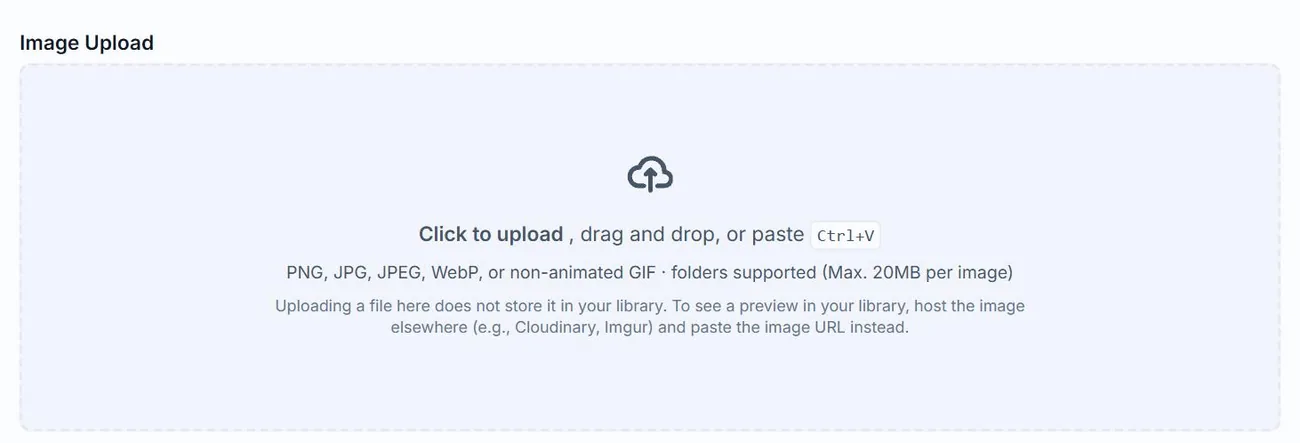
Drag-and-drop, click-to-upload, or paste a copied image directly with Ctrl/Cmd+V.
1
Open the upload area
On the Create page, scroll past the URL input to the Image Upload section.
2
Drag and drop
Drag any image file (PNG, JPG, JPEG, WebP, or non-animated GIF, up to 20 MB) from your file manager and drop it into the upload zone. The preview loads instantly.
3
Or click to browse
Click anywhere in the upload zone to open your system's file picker, then choose an image.
4
Or paste a copied image
With your cursor focused anywhere on the page, press Ctrl+V (Windows/Linux) or Cmd+V (Mac) to paste an image directly from your clipboard. Works with anything you've copied: useful for screenshots without saving them first, or for pasting an image you copied from another browser tab.
Related guides
- How to generate alt text— Pick any input method (upload, URL, CSV, HTML, or scrape), choose your options, click Generate.
- How to link an image (paste a URL)— Use a direct image URL when the image is already hosted somewhere.
- How to upload multiple images at once— Batch generate alt text for a folder of images or several URLs.