Alt Text Studio · Documentation
How to add a custom prompt
Steer tone or context with free-form instructions to the AI.
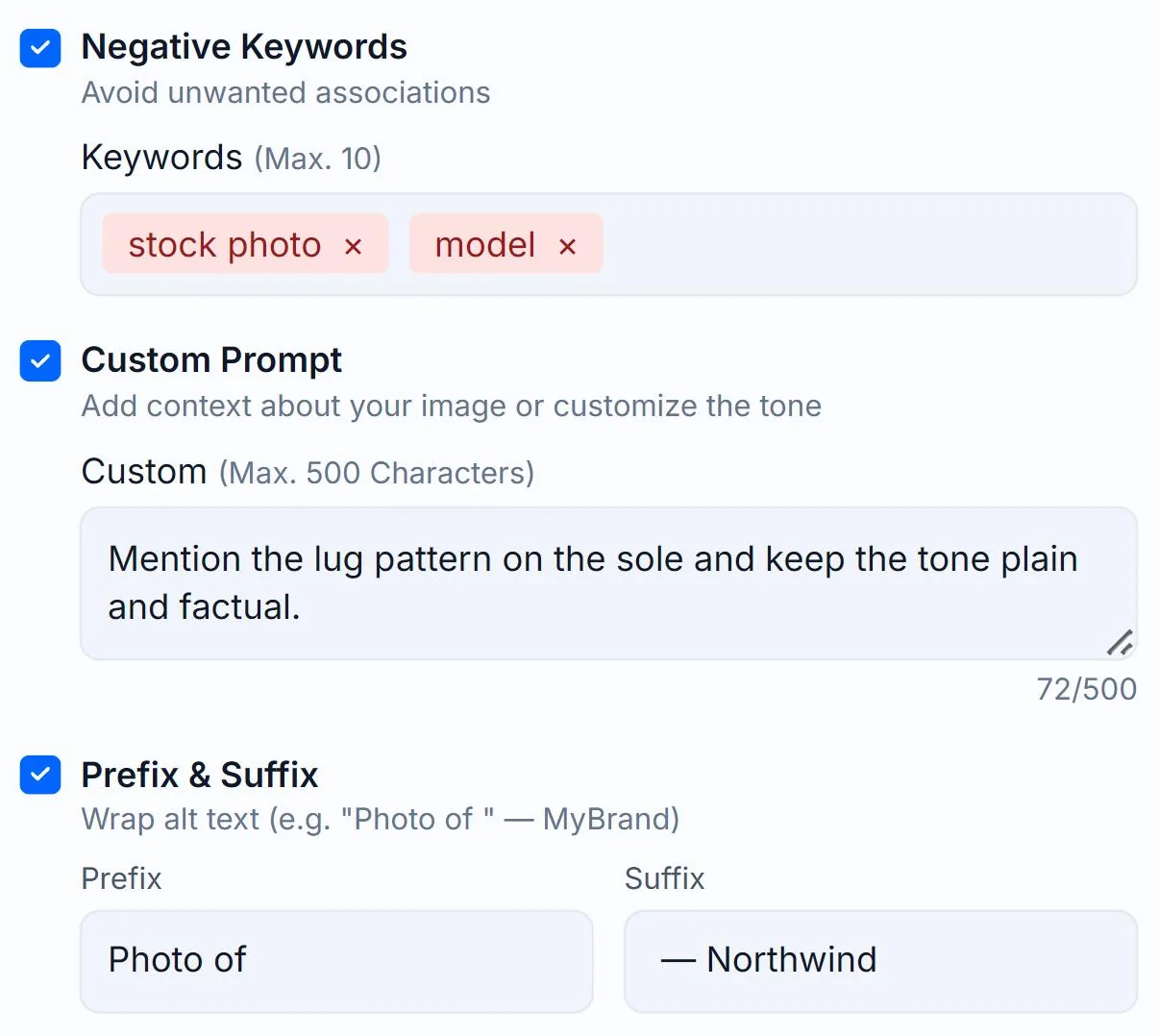
Custom prompt is the most flexible option. It's a free-form instruction appended to the AI's system prompt. Use it for two main things: feeding the AI helpful context the image alone doesn't show (who's in the photo, what the event is, what the product does), or changing the style of the alt text (tone, voice, perspective, structure).
Where to add it
On the Create page, tick the Custom Prompt checkbox in the Options panel to expand a textarea (max 500 chars). Or save a default in Generation Defaults so it applies to every new image.
Examples that work
For context, tell the AI things only you know: *"This is Jane Smith, our CEO, speaking at a product launch"*, or *"Photographed at our Brooklyn flagship store; the product on the shelf is our new fall collection."* For style, steer the writing: *"Write in a casual, friendly tone for a parenting blog audience"*, or *"Output in the present tense, third person, no first-person language."*
How it interacts with other options
Custom prompt LAYERS on top of all other options. SEO keywords, negative keywords, brand, and language all still apply. Custom prompt fills the gaps. If you set a custom prompt that contradicts an option (e.g. "keep it under 50 chars" but the Detailed text length is on), the prompt usually wins because it's more specific.
Per-image vs default
If you save a custom prompt in Generation Defaults, it pre-fills on every new image. You can override per-image without touching the saved default. Just change the textarea on /create.
Related guides
- How to add SEO keywords— Bias the AI toward keywords you want to rank for.
- How to add negative keywords— Words to keep out of the generated alt text.
- How to change and save Generation Defaults— Set your preferred options once on the My Account page and Alt Text Studio will use them everywhere.