Alt Text Studio · Documentation
How to export your library to plain text
Bulk-export the alt text content as a .txt file.
Open Export → Plain Text
On My Library, click Export As → pick Plain Text.
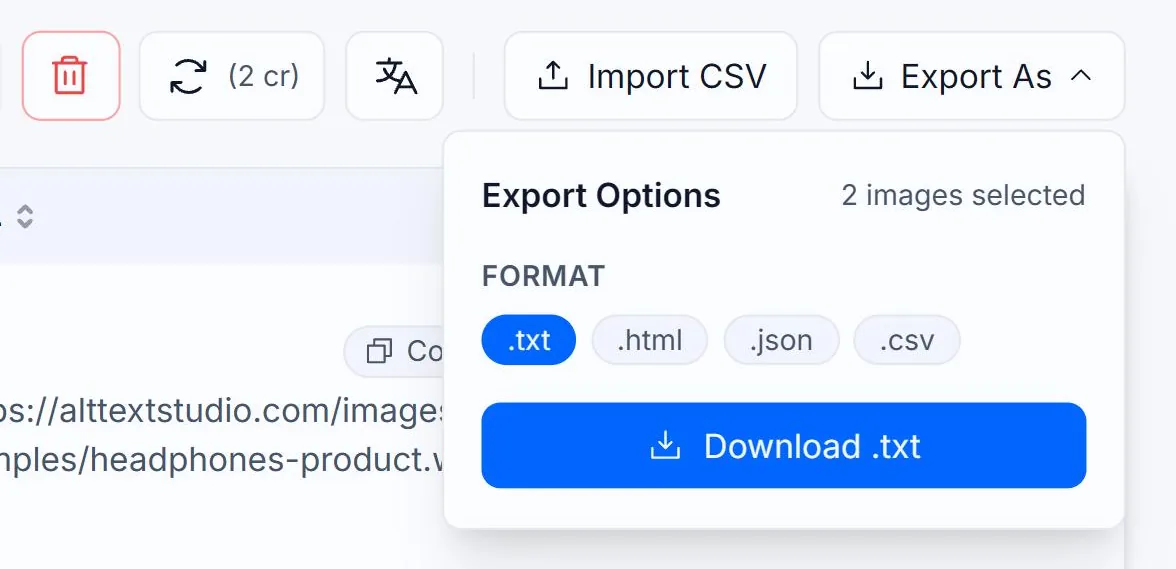
Select the rows you want to export
Tick rows individually, or use the header checkbox to select every row matching your current search and filters. The export shows the row count before you confirm.
What you get
A .txt file with one block per image-and-language combination. Each block is the image name and language label, the image URL, and the alt text on consecutive lines, with a blank line between blocks. Useful when handing off content to a copywriter for review.
headphones-product — English
https://alttextstudio.com/images/examples/headphones-product.webp
Black over-ear wireless headphones on a wooden desk

headphones-product — Spanish
https://alttextstudio.com/images/examples/headphones-product.webp
Auriculares inalámbricos negros sobre un escritorio de madera

amber-soy-candle — English
https://alttextstudio.com/images/examples/candle-product.webp
Soy candle in an amber glass jar with a lit wickLarge exports arrive by email
If you have more than 500 items selected, the export panel switches to email mode: the action button becomes Email File and a Send export to input pre-fills with your account email (you can change it). The .txt file arrives as an attachment from no-reply@alttextstudio.com (check spam if it doesn't show up). Rate limit: 5 export emails per 10 minutes.
Related guides
- How to export your library to CSV— Bulk-export selected images and chosen columns to a CSV.
- How to export your library to HTML— Bulk-export to an HTML document with proper <img> tags.
- How to export your library to JSON— Bulk-export your library as a .json file for scripts and other systems.
- How to save alt text as a plain .txt file— Download a .txt of just the alt text for a single image.