Alt Text Studio · Documentation
Switching between languages with the language badges
Use the language badges on Create, My Library, and the detail page to flip between translations.
Every multilingual image shows small language badges, one per language using the ISO 639 code (e.g. EN for English, ES for Spanish). Click one to swap the visible alt text. Badges appear in three places, and they all behave the same way.
On the Create page
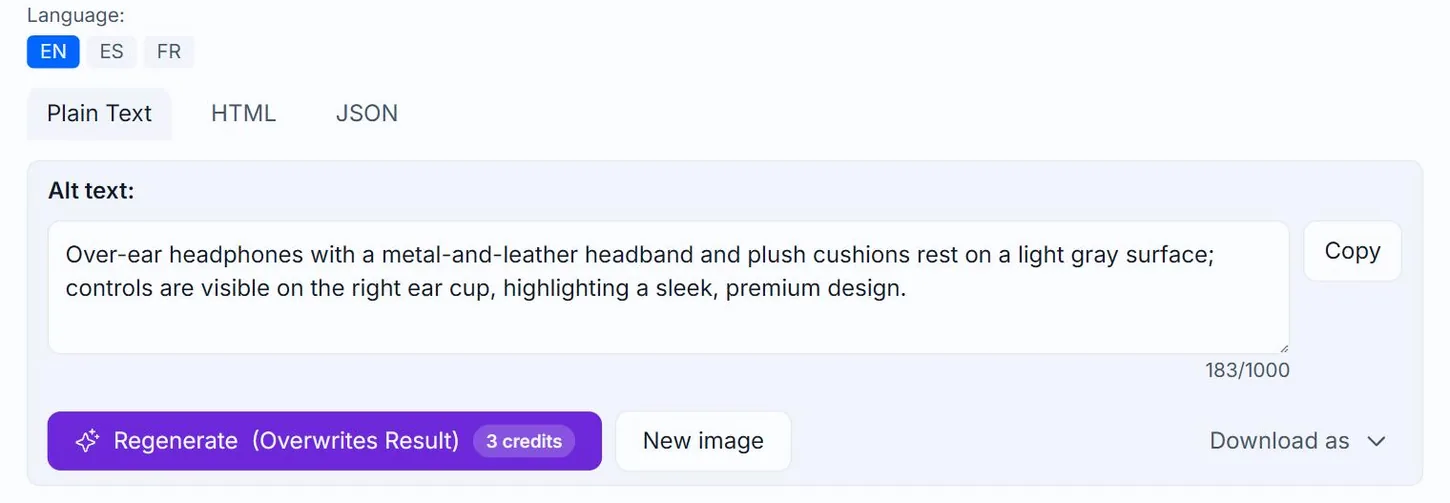
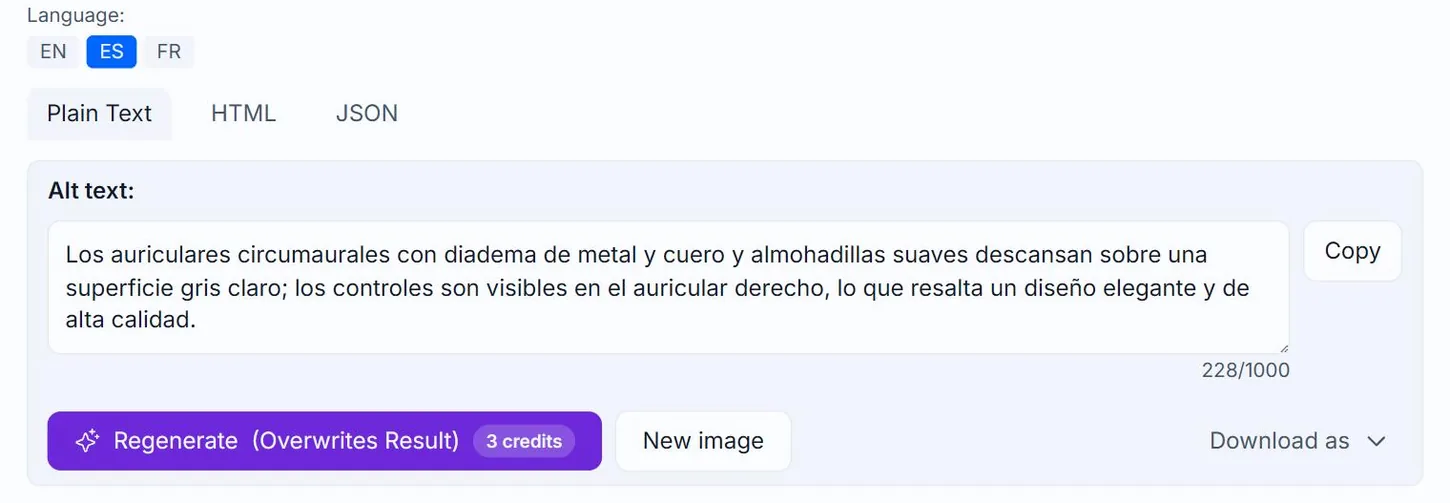
After generating with multiple languages on the Create page, the result card has badges above the alt text textarea. The active badge is highlighted with a filled accent color. Click another to switch.
EN active
ES clicked
In My Library rows
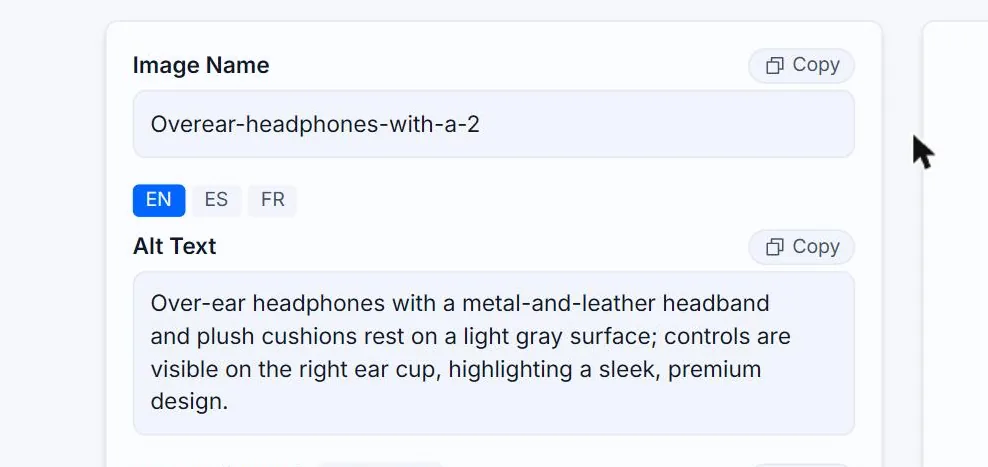
Each row in My Library shows badges next to the alt text cell when the image has more than one language. Click a badge to swap which language is displayed AND copied when you click the row's Copy button.

On the detail page
Bigger badges at the top of the detail page result card. Switching here also switches which language Save Alt Text As downloads.
Choosing languages at export time
When you bulk-export from My Library, the export panel has its own multi-select Languages to export list. Pick whichever languages you want included; it's independent of which badge happens to be active in the table.
Related guides
- How to translate alt text into other languages— Add languages to a generation; each language costs additional credits.
- How to edit alt text after generating— Edit alt text inline on the Create page, in My Library rows, or on the detail page.