Alt Text Studio · Documentation
Navigating My Library
Search, filter, sort, paginate, and select rows for bulk actions. The full tour.
My Library is where every alt text you've generated lives. Find any past result, edit it, regenerate, copy, export, or delete. All from this one table.
The table itself
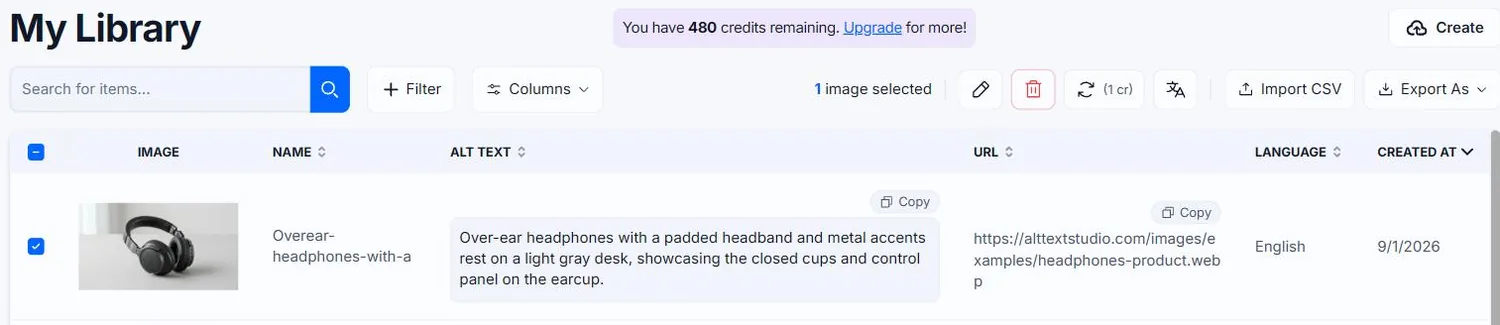
Each row = one generated image. Default columns: image preview, name, alt text, URL, language, and created date. Optional columns (text length, brand, product, colors, keywords, custom prompt) can be toggled via the column visibility menu next to the Filter button. Click any row to open the full detail page.
Search and filters
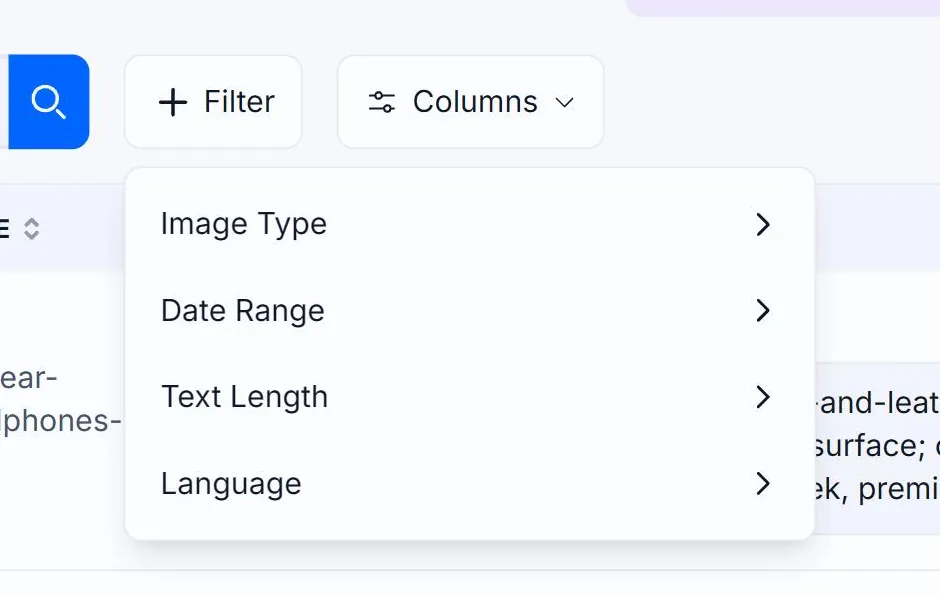
The search box at the top matches against image name, alt text, image URL, brand, and product. The Filter dropdown lets you narrow further (filters AND together; multiple values within one filter OR together):
- Image Type — Uploaded (from your computer) or Linked (from a URL). Useful for separating assets you own from referenced ones.
- Date range — preset windows (All time, Today, Last 7/30/90 days, Last 6 months, This/Last month, This/Last year) or a custom range. Matches against the generated date, not the last edit.
- Text length — Normal or Detailed. Handy for QA passes against just short or just long alt text.
- Language — multi-select. Rows must contain ALL selected languages (Spanish + French = rows with both, not either).
Active filters show as removable pills beneath the toolbar. Click the × on a pill to drop one, or Clear all filters to reset.

Sort columns
Click any column header to sort by it. Click again to flip direction. Default sort is Created Date descending (newest first).

Pagination
Page numbers plus Prev / Next buttons (and First / Last shortcuts) sit at the bottom of the table. The URL updates as you navigate, so you can share or bookmark a specific page.

Bulk select for export or delete
Each row has a checkbox. Tick rows individually, or use the header checkbox to select every row matching your current search and filters (selection works across pages, not just the visible page). Then Export As or the toolbar trash icon acts on just the selection.

What the bulk buttons do
Four buttons appear next to the selection count once at least one row is ticked:
- Edit (pencil) — opens the detail page for a single selected image.
- Delete (trash) — removes every selected image from your library. There is no undo.
- Regenerate (arrows) — re-runs generation on every selected image, labelled with what it will cost.
- Translate (characters) — adds languages to every selected image.
Import CSV and Export As sit to their right and are always available.

Related guides
- How My Library search works— What fields are searched, how matching is done, and persisting results in the URL.
- How My Library filters work— Image type, date range, text length, and language filters in detail.
- How My Library pagination works— Page size, navigating pages, and how filters interact with pagination.
- How to export your library to CSV— Bulk-export selected images and chosen columns to a CSV.