Alt Text Studio · Documentation
How to regenerate alt text
Force a fresh generation if the first result missed the mark. Costs the same credits.
Sometimes the AI's first take misses something obvious or picks up on the wrong detail. Regenerate is a one-click way to try again, usually with tweaked options for a different result.
Where the Regenerate button lives
On the Create result card you'll see a purple Regenerate button (it shows the credit cost on its label). On the My Library detail page, the regenerate icon (a circular-arrow) sits in the action bar above the alt text. It opens a confirmation modal showing the credit cost; the image's saved options are reused as-is.

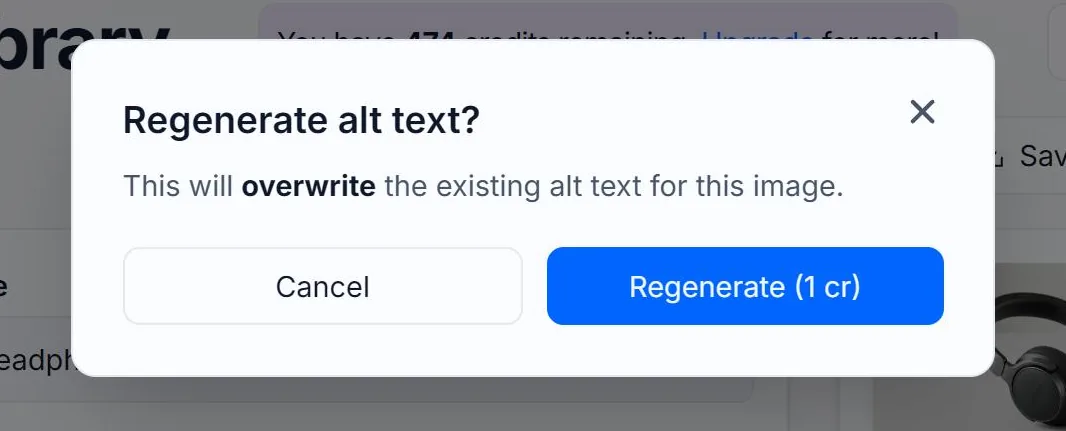
Tweak options before regenerating for better results
Just clicking Regenerate runs the same prompt with the same image and options. To get a meaningfully different result, change something first: switch from Normal to Detailed text length, add SEO keywords, or write a custom prompt steering the tone.
Each regeneration costs full credits
Regeneration is treated as a fresh generation. It consumes the same credits as the original.
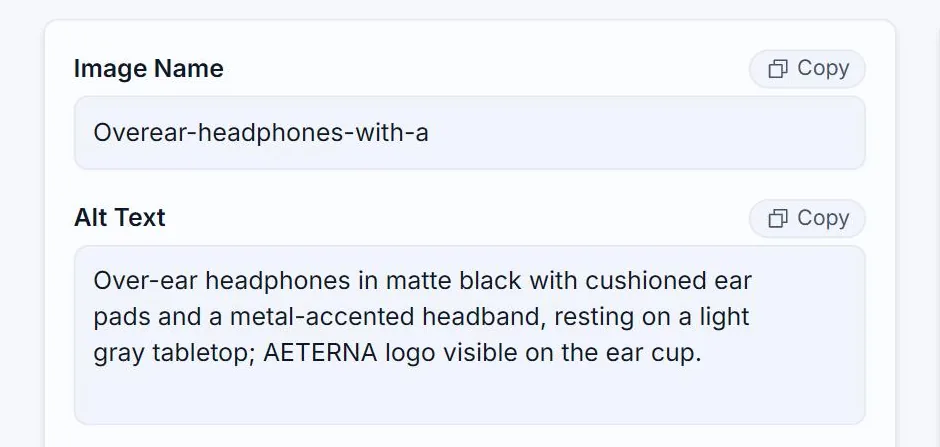
Before
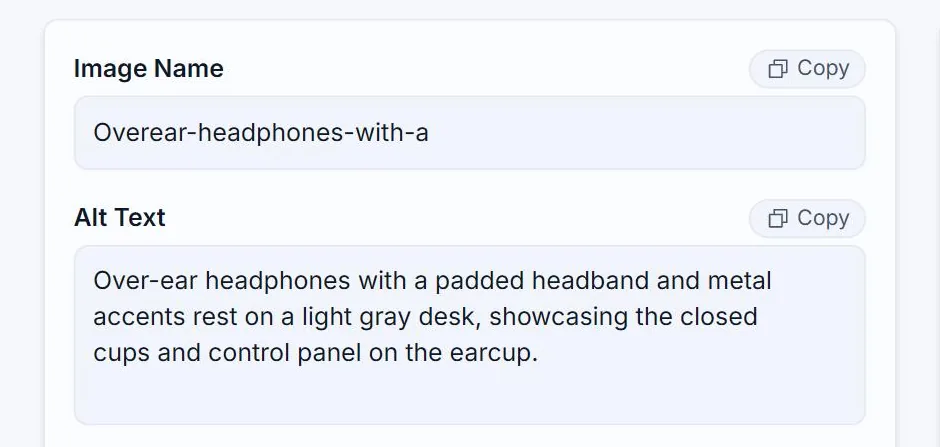
After regenerating
Related guides
- How to edit alt text after generating— Edit alt text inline on the Create page, in My Library rows, or on the detail page.
- How to add a custom prompt— Steer tone or context with free-form instructions to the AI.
- About credits and pricing— How a credit is spent, monthly vs yearly billing, pay-as-you-go.