Alt Text Studio · Documentation
How to edit alt text after generating
Edit alt text inline on the Create page, in My Library rows, or on the detail page.
Generated alt text is just a starting point. Edit it anywhere it's displayed. Edited text always wins over the AI's original.
Edit on the Create page
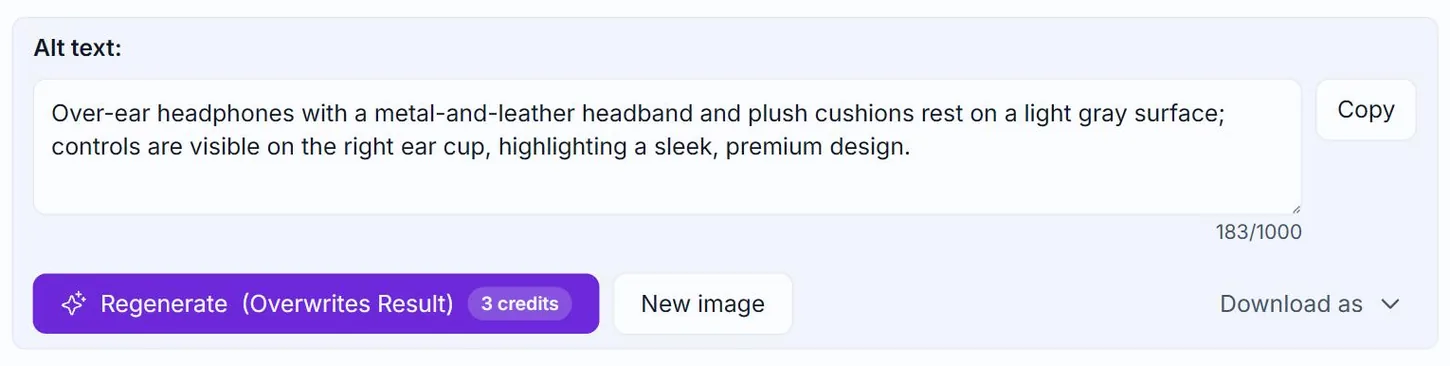
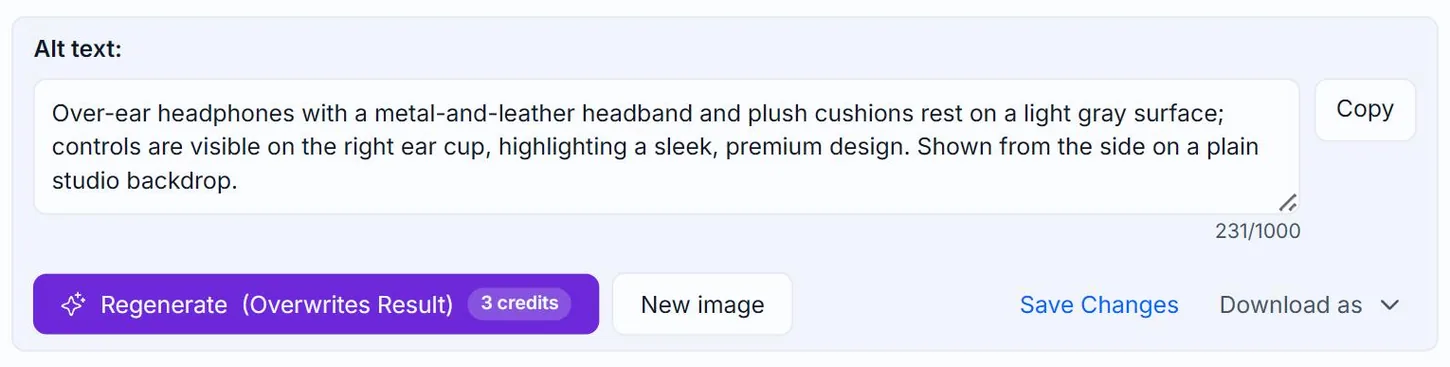
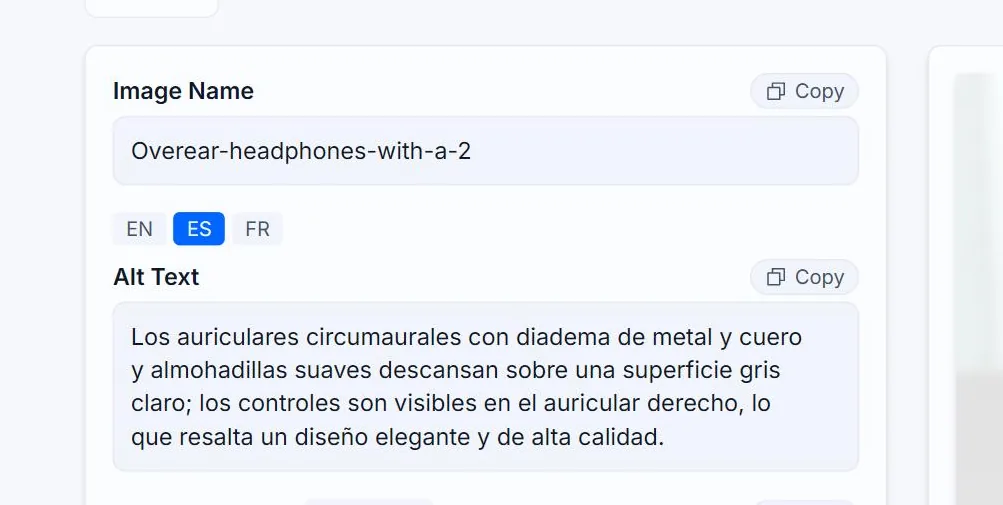
Right after generating on the Create page, click into the alt text textarea on the result card and start typing. A Save Changes link appears next to the result. Click it to commit the edit. The character count updates live.
Initial generated text
After editing
Edit a row in My Library
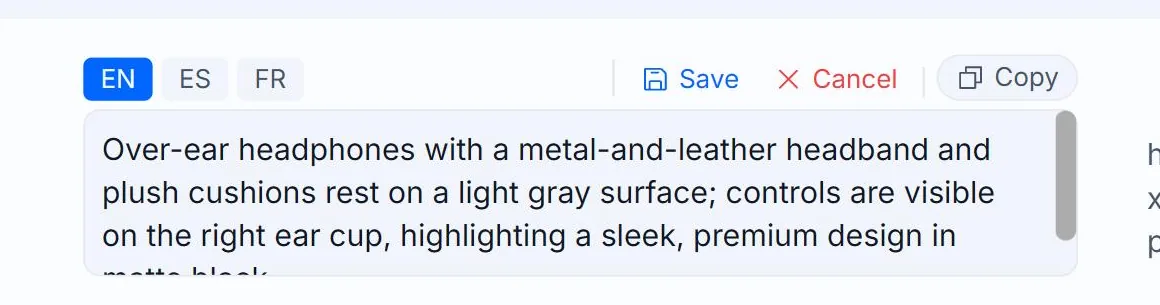
On My Library, focus the alt text textarea on any row and start typing. A Save button (with a Cancel) appears next to the language badges; click Save to commit, or Cancel to revert.
Edit on the detail page
Click any row in My Library to open its detail page (/my-library/{id}). The alt text gets a larger textarea here, easier for long descriptions or Detailed text length output. Edits are committed with the Save button that appears beside the field while you have unsaved changes.
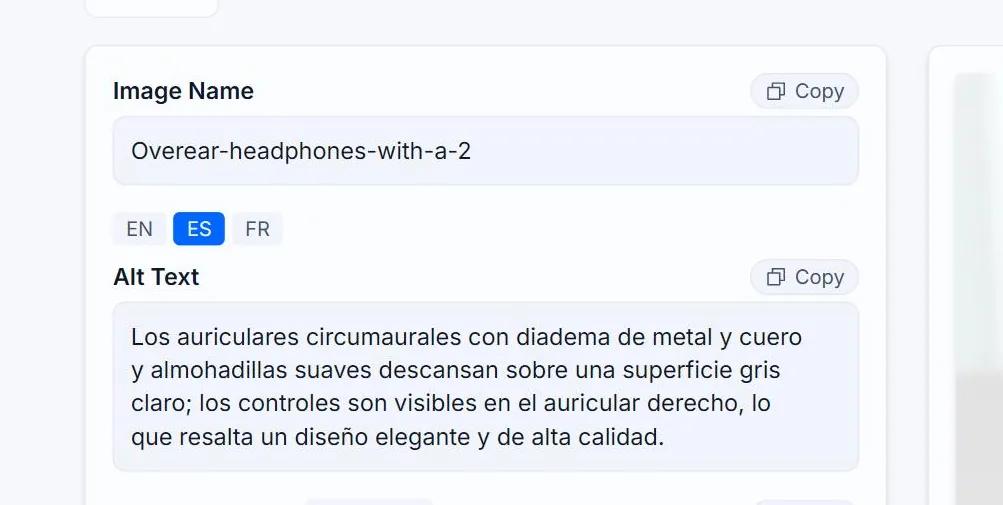
Edit individual languages
If the image has translations, each language has its own editable textarea (or use the language badge tabs to switch). Editing English doesn't affect the Spanish translation. They're stored independently.
Related guides
- How to regenerate alt text— Force a fresh generation if the first result missed the mark. Costs the same credits.
- How to rename a generated image— Change the Name field after the fact, on the detail page or in My Library.
- How to view full details of a specific image— Click any row in My Library to open its detail page. Full image preview, all formats, language tabs, and editable fields.