Alt Text Studio · Documentation
How to copy alt text as JSON
Structured object with image_name, image_url, and per-language alt text.
1
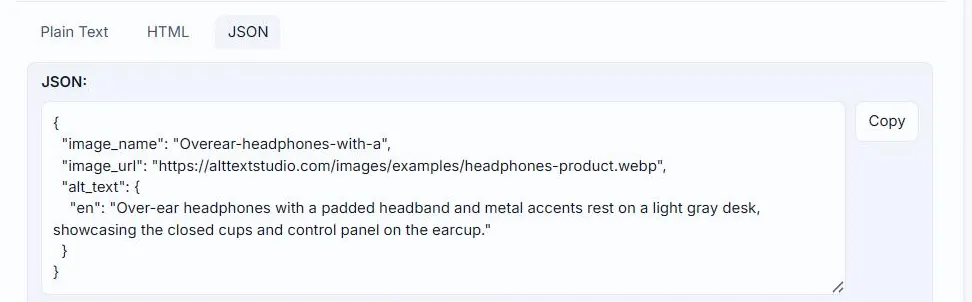
Click the JSON format tab
On any result view, switch to the JSON format tab. The textarea now shows a structured object.
2
What's in the JSON
A small structured object: the image_name, the image_url, and an alt_text field keyed by language code. Uploads (where the image lives in your library, not on a public URL) show YOUR_IMAGE_URL_HERE as a placeholder so you can swap in your final hosted URL.
{
  "image_name": "headphones-product",
  "image_url": "https://alttextstudio.com/images/examples/headphones-product.webp",
  "alt_text": {
    "en": "Black over-ear wireless headphones on a wooden desk",
    "es": "Auriculares inalámbricos negros sobre un escritorio de madera"
  }
}3
When to use it
Best for piping into a script or another system: the JSON keeps the alt text next to the image URL and name, so nothing has to be re-matched at the other end. For anything bigger than a handful of images, export JSON from My Library instead of copying one result at a time.
Related guides
- How to copy alt text to clipboard— One-click copy from the Create result, My Library row, or detail page.
- How to copy alt text as HTML— Get the full <img src="..." alt="..."> tag, ready to paste into your site.
- How to save alt text as a .json file— Download a structured JSON object, useful for scripts and pipelines.