Alt Text Studio · Documentation
How to generate alt text
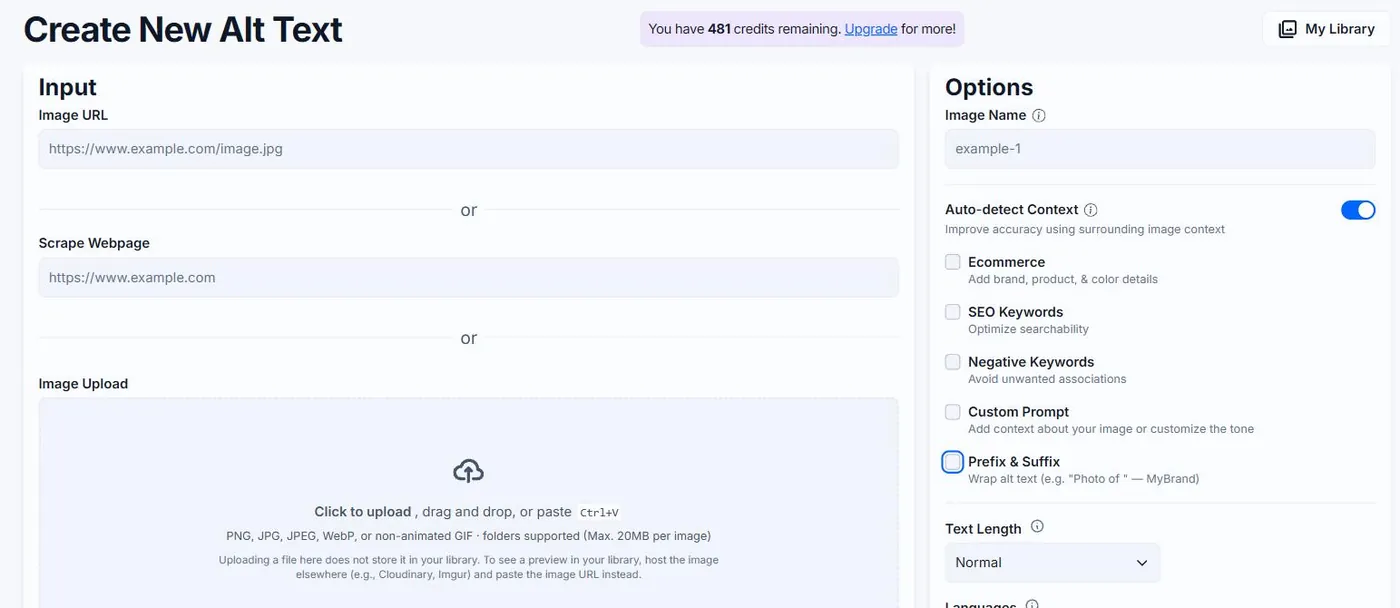
Pick any input method (upload, URL, CSV, HTML, or scrape), choose your options, click Generate.
This getting started guide is primarily for the web app. You can also generate alt text with our Chrome extension, WordPress plugin, or Shopify app.
Open the Create page
From anywhere in the app, click Create in the top navigation. You'll land on the page where you feed Alt Text Studio your images and pick options.

Pick an input method
The Create page accepts images through any of these methods. Use whichever fits the source you have:
- Image Upload — drag-and-drop or browse for one or many image files (.jpg, .png, .webp, .gif) from your computer. See How to upload an image and How to upload multiple images.
- Image URL — paste a direct link to an image. See How to link an image and How to link multiple image URLs.
- CSV import — paste or upload a CSV of URLs (and optional metadata) for bulk processing. See How to import a CSV.
- HTML paste — paste raw HTML (a page snippet or email source) and we'll extract every
<img>tag for you. See How to import images from HTML. - Webpage scrape — give us a URL and we'll fetch the page and queue every image on it. See How to scrape a webpage for images.
Each input method ends the same way: image previews appear as cards on the Create page, ready to generate.
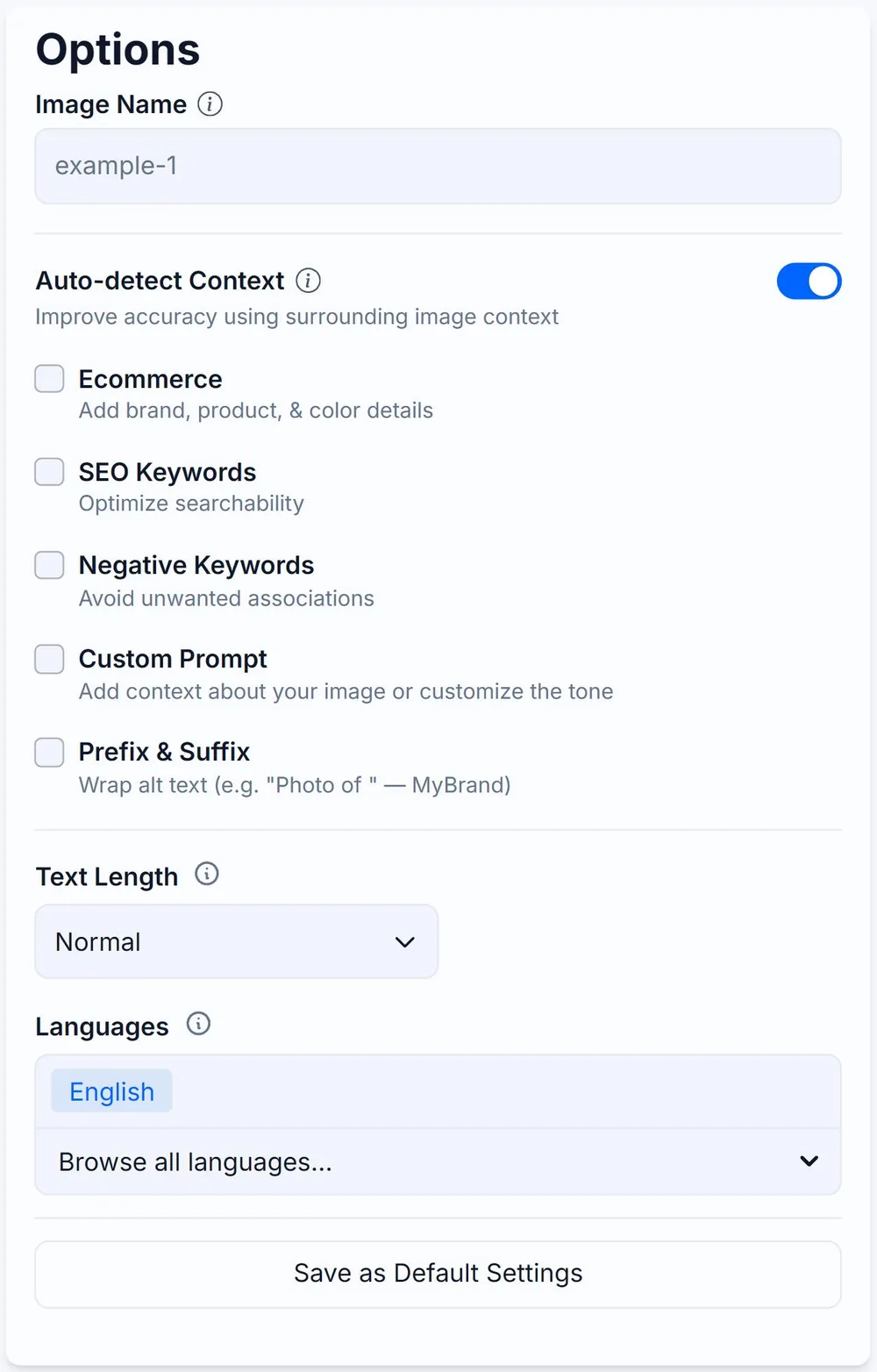
Set options (optional)
Open the Options panel on each card to tweak text length, languages, custom prompts, ecommerce details, SEO keywords, and more. Or save a set of defaults so every new image inherits them. See How to change and save Generation Defaults.
Click Generate alt text
Each image card has a Generate alt text button that shows the credit cost for the current options. Click it. A single image is usually ready in just a moment; bulk batches process one card at a time.

Copy, edit, save, or download the result
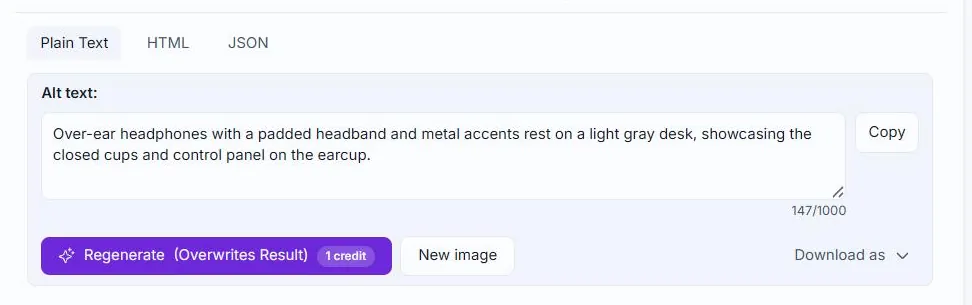
Your alt text appears below the image with Plain Text, HTML, and JSON tabs. From here you can:
- Copy — click the Copy button to put the active tab's content on your clipboard.
- Edit — click into the textarea and change the alt text. A Save Changes link appears once you start editing; click it to commit the edit to your My Library. Copying without saving copies the edited text but won't update what's stored.
- Download as — open the Download as dropdown to save the alt text directly as
.txt,.html,.json, or.csvfor the current image.
The generated result is automatically saved to your My Library as soon as it generates, so you can always come back to it later. Edits made on the Create page just need an explicit Save Changes click to be reflected there.
Related guides
- How to upload an image from your computer— Drag-and-drop, click-to-upload, or paste a copied image directly with Ctrl/Cmd+V.
- How to link an image (paste a URL)— Use a direct image URL when the image is already hosted somewhere.
- How to import a CSV— Bulk-import images by uploading a CSV. Includes the supported template.
- Install the Chrome extension and sign in— Add Alt Text Studio to Chrome and connect it to your account to generate alt text anywhere on the web.
- Install the WordPress plugin— Add Alt Text Studio to your WordPress site from the plugin directory.